 SpotThemes
Add, name and order floors
A new venue starts with one floor called Ground floor. Press + Floor above the map to add Level 1, Level 2 and so on, up to 30 floors.
- Name (up to 40 characters) shows in the floor switcher and in each place card, for example "Ground floor".
- Short label (up to 4 characters, for example G or L1) is what the floor buttons show on the map.
- Move up and Move down change the order. The first floor in the list is shown first, unless you pick another in Settings, First floor shown.
- Delete floor moves that floor's places to the first floor without a position, and removes its You are here points. Ctrl+Z undoes it before you save.
SVG or picture: which to use
Use an SVG when you have one or can make one. It turns every unit into a clickable shape. Use a picture when all you have is a scan or an image.
| What | SVG floor plan | Picture (PNG, JPG, WebP) |
|---|---|---|
| Clickable units | Yes, every named shape can be linked to a place | Only the shapes, boxes and pins you draw |
| Size limit | 5 MB, up to 4,000 shapes per floor | Your Media Library's own limit |
| Setup time | Fast when shapes are named by unit number | One shape or pin per place, by hand |
| Colours | Clean SpotThemes style, or the file's own colours (a setting) | The picture as it is |
| Stored as | Shape data inside the venue (the file itself is not kept) | A normal Media Library image |
You can also use both on one floor: the picture is drawn under the SVG shapes. Keep both at the same proportions so they line up.
Upload an SVG floor plan
Upload one SVG per floor. Each upload replaces that floor's previous SVG.
- Pick the floorIn the Map & places tab, click the floor's button above the map, or press
+ Floorto add one. - Upload the SVGIn the Floor panel on the right, press Upload SVG plan and choose the file (under 5 MB).
- Read the resultThe panel says how many shapes were kept and how many were skipped, for example 212 shapes kept, 3 skipped (unsupported or hidden).
- Link the shapesPress Link shapes to places by unit or name, or Create places from named shapes. See Link SVG shapes to places.
- SavePress Update. The SVG itself is stored at once, the links to places are saved with the venue.
To take the SVG off a floor, press Remove SVG. Places linked to its shapes lose their position, so you would need to link or draw them again.
Prepare an SVG so shapes link on their own
The work is in the file. Draw one closed, filled shape per unit and name each shape by its unit number, such as G-12. Our guide How to make an interactive SVG floor plan in WordPress walks through Figma, Illustrator and Inkscape. In short, this is what Venue Map reads:
| Part of the file | What Venue Map does with it |
|---|---|
| Shapes | Reads path, rect, polygon, polyline, circle, ellipse and line. |
| Names | Takes a shape's name from data-name, aria-label, the Inkscape label, name, title, a <title> inside the shape, or its id. The id is also kept as a second name. |
| No fill | A shape with fill="none", a polyline or a line is drawn as a line and cannot be clicked. Good for walls, wrong for units. |
| Hidden parts | Skips shapes inside defs, masks, clip paths, symbols, patterns and anything with display:none. |
| Colours | Keeps plain colours (#hex, rgb(), white, black), also from Illustrator's class styles. Gradients and patterns are ignored. |
| Transforms | Keeps matrix, translate, scale, rotate and skew, so shapes stay where you drew them. |
| Text, images, scripts | Dropped. Venue Map writes place names on the map itself, and nothing in the file can run on your site. |
| Size of the drawing | Needs a viewBox, or a width and height. Every design app writes one. |
Add a picture instead
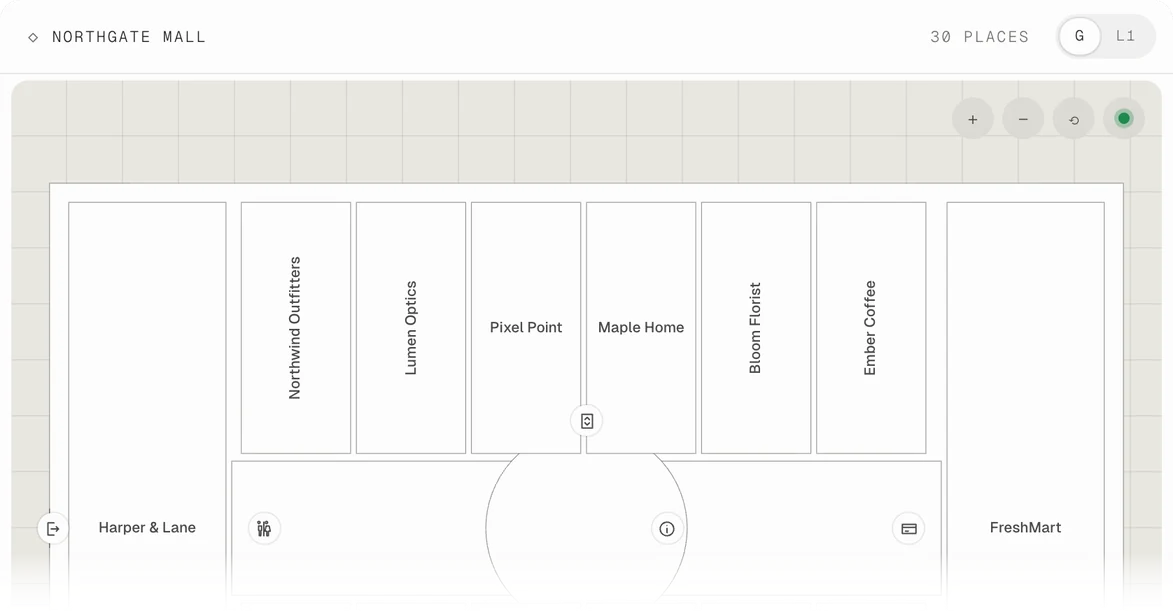
Press Floor plan picture in the Floor panel and pick an image from the Media Library, or upload one there. Replace picture swaps it and Remove picture takes it off. The map uses the 2048 pixel size WordPress makes, so upload a sharp image at least that wide. Then put places on it with the Pin, Draw shape and Box tools.
How big floors load
Small floors are sent inside the page, so the map draws with no extra request. When the SVG floors of a venue add up to more than about 250 KB, the larger floors load from your site's own address (/wp-json/spotthemes-venue-map/v1/floor/...) when a visitor opens them. If a security plugin blocks that address, visitors see "The floor plan could not be loaded." See Troubleshooting.
Related docs
- Link SVG shapes to placesLink the named shapes of an SVG floor plan to places in one click, create places from shapes, or link one shape at a time.
- Draw shapes, boxes and pinsPut places on a floor picture with the Pin, Draw shape and Box tools, move corners, zoom the builder and undo with Ctrl+Z.
- Add places, categories and opening hoursEvery field of a place in Venue Map, how categories and amenities work, and how to type hours with split shifts and times past midnight.
- TroubleshootingEvery error message Venue Map shows and what to do: SVG too large, shapes not clickable, floor plan not loading, theme CSS, caching.