 SpotThemes
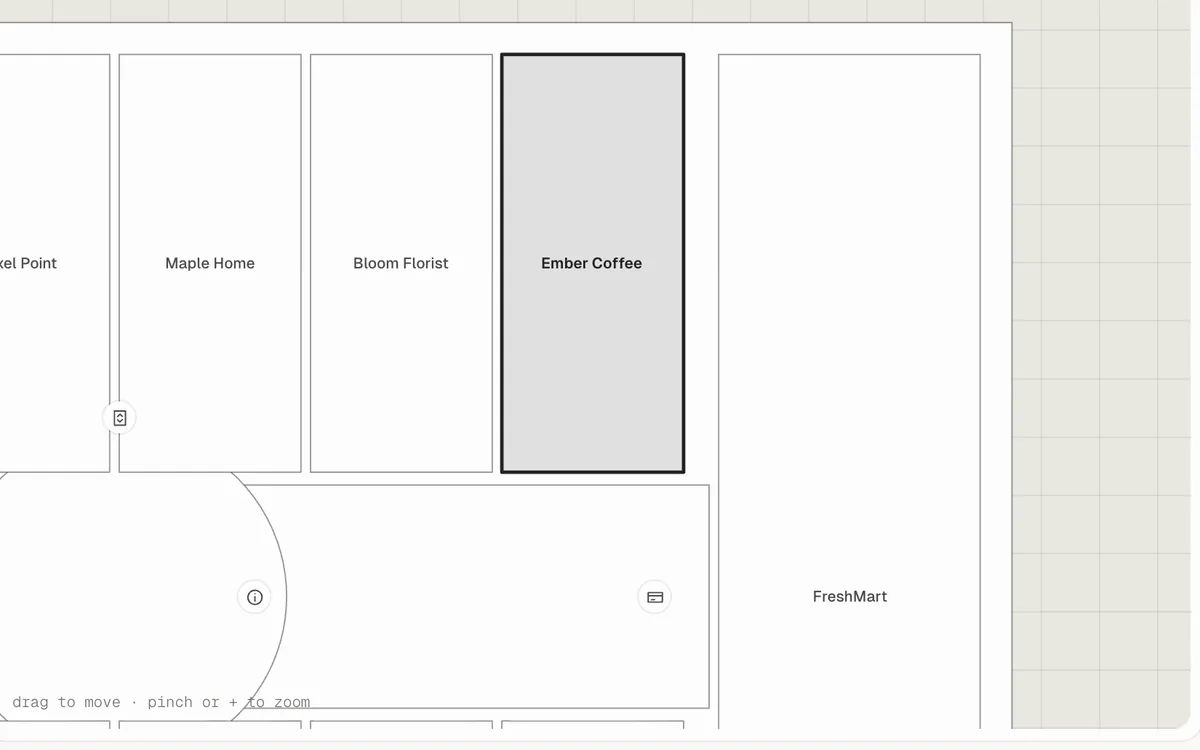
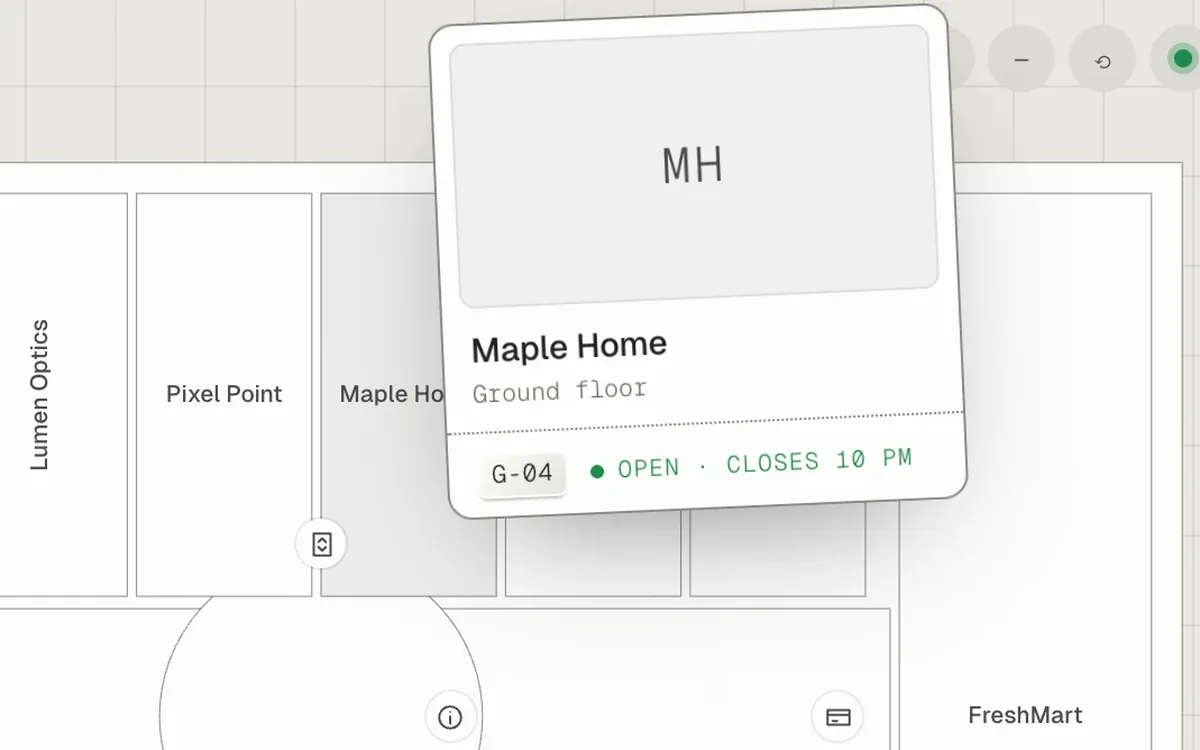
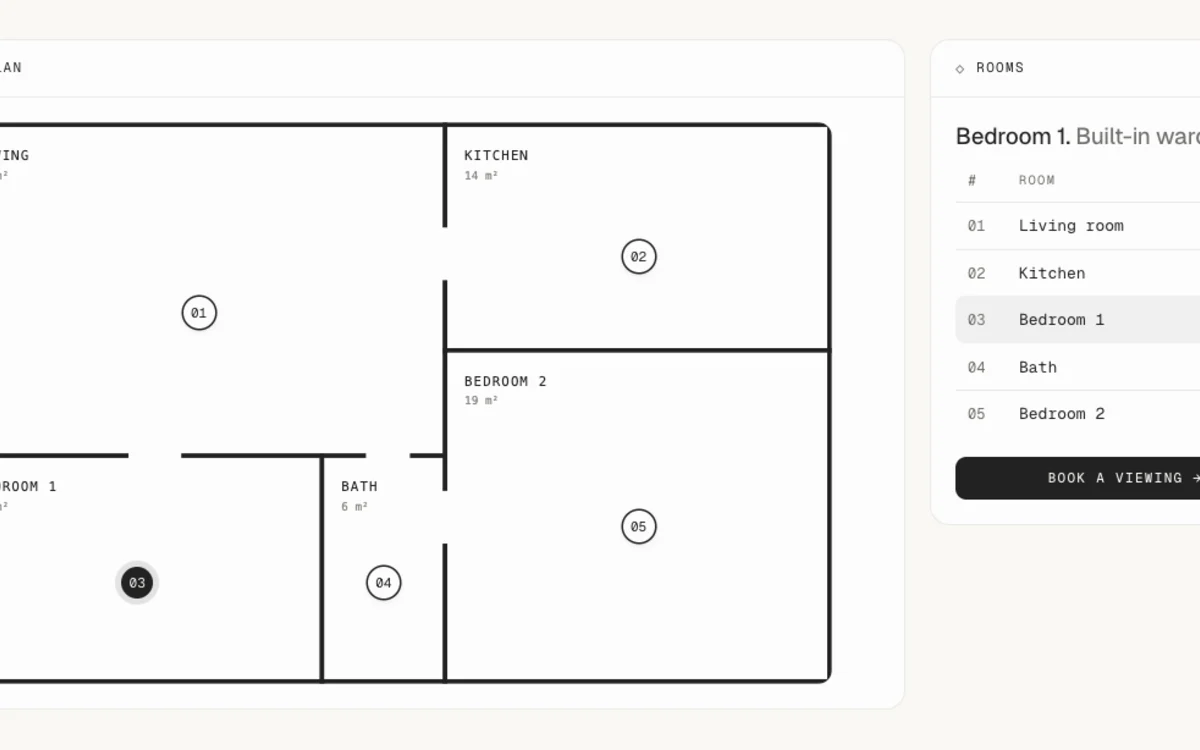
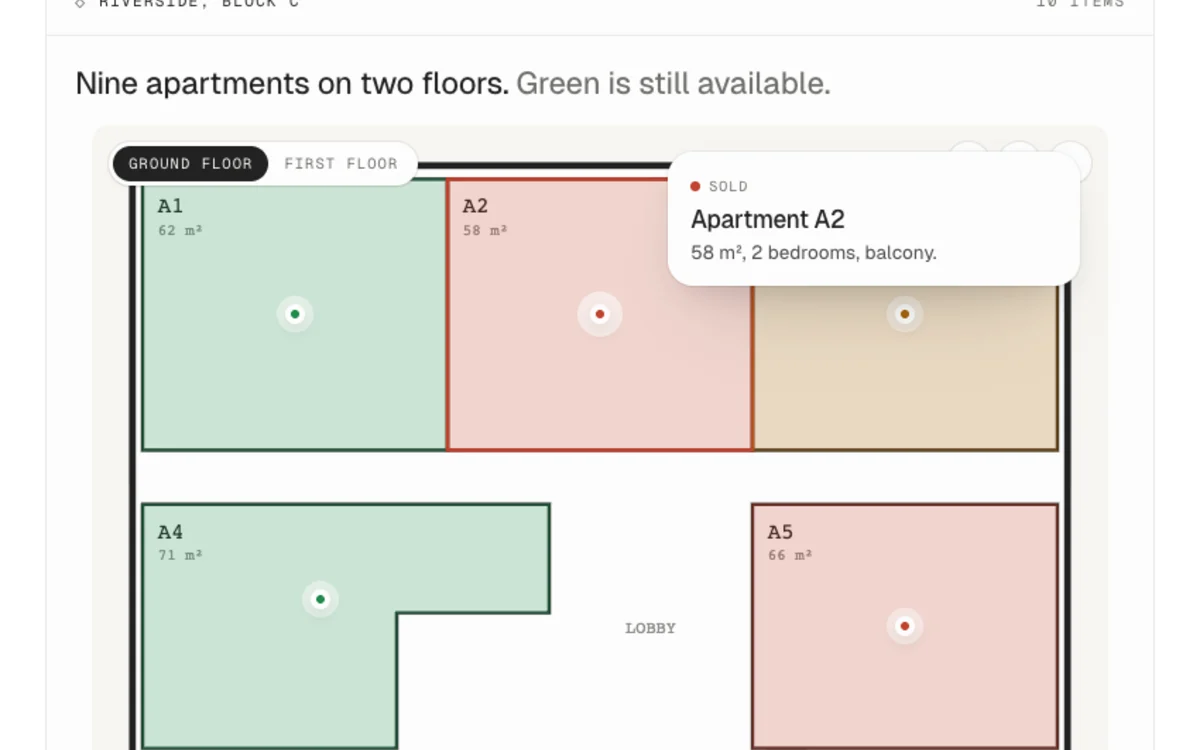
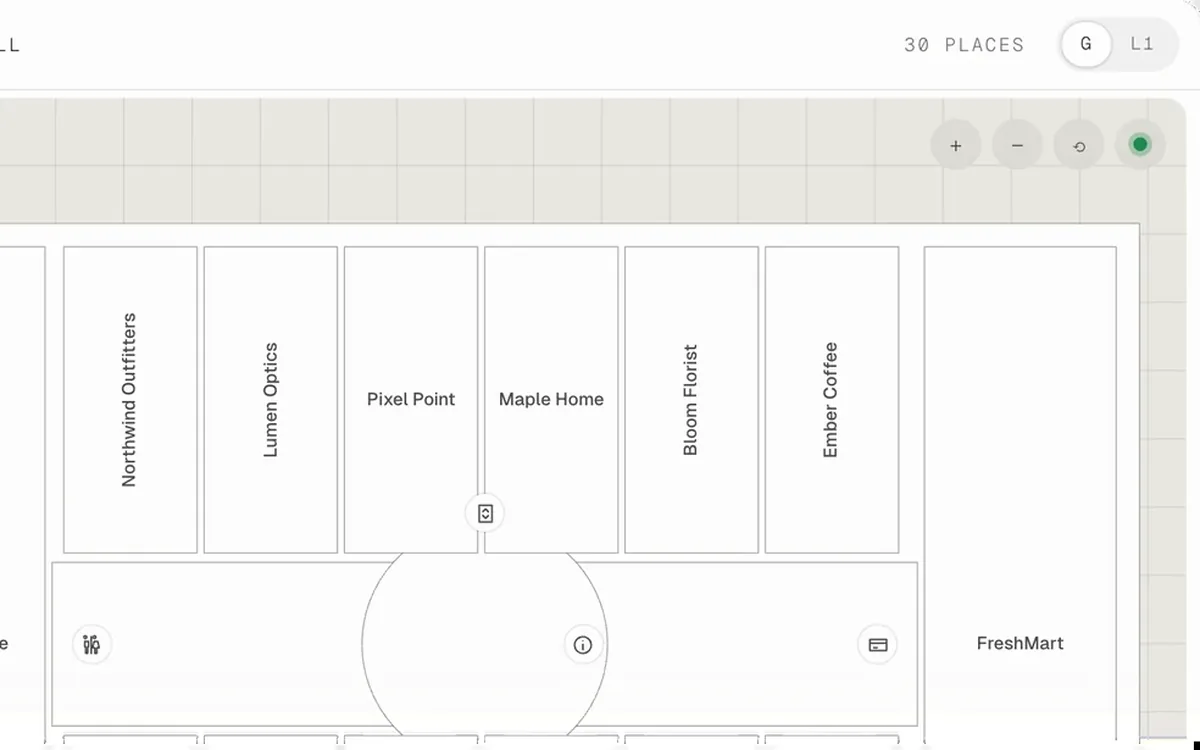
An interactive floor plan is a plan where each unit is a real object, not just pixels. Click a shop and its card opens. Search for it and it lights up. That only works if the file tells the website where each unit starts and ends, and what it is called. A flat picture cannot do that. An SVG with named shapes can.
This guide uses Venue Map for WordPress, our plugin, for the upload and linking steps. The file preparation works the same for any tool that reads SVG shapes.
What you need before you start
You need a floor plan you can trace, a design app that exports SVG, and the list of unit numbers. This table shows where each app keeps the names and which export setting keeps them in the file.
| Design app | Where you name a shape | Export setting that keeps names |
|---|---|---|
| Figma | The layer name in the Layers panel | Export as SVG with "Include 'id' attribute" ticked |
| Adobe Illustrator | The object name in the Layers panel | File, Export, Export As, SVG, with Object IDs set to Layer Names |
| Inkscape | Object Properties: ID and Label | Inkscape SVG keeps both. Plain SVG keeps the ID |
| Any other app | An id, title or data-name on each shape | Any SVG export that keeps ids |
1. Trace one closed shape per unit
Each shop, room or office needs its own closed shape. Rectangles, polygons and paths all work. Put the outer walls, corridors and decoration on separate layers so they never get mixed up with units.
Venue Map reads rectangles, circles, ellipses, polygons, polylines, paths and lines. A shape with no fill is treated as a line, so it stays visible but cannot be clicked. That is useful for walls and doors, and a trap for units: give every unit a fill, even plain white.
Bottom lineUnits are filled, closed shapes. Walls can be lines.
2. Name every shape by its unit number
Name each unit's shape after the number on the sign: G-12, L1-04, 201. Unit numbers stay the same when tenants change, so the file never needs to be redone. Shop names work too, but they go out of date.
The name must sit on the shape itself. Many apps wrap a shape in a group or frame, and the name ends up on the group. Venue Map reads names from shapes, not from groups, so rename the shape layer or ungroup it.
Bottom lineUnit number as the name, on the shape, not the group.
3. Leave labels and hidden layers out
Do not export room names as text, and never turn text into outlines. Venue Map writes the place names on the map from the directory, so labels in the file are wasted. Text turned into outlines becomes hundreds of small shapes that can bury the real units.
Shapes inside hidden layers, masks, clip paths or defs are skipped. That is good for guides and notes, but check that no unit is hidden by mistake.
Bottom lineExport only walls and units. The map adds the labels.
4. Export a clean SVG
Export each floor as its own SVG. The file needs a viewBox or a width and height, which every design app writes on its own. Venue Map takes files up to 5 MB and reads up to 4,000 shapes per floor.
Open the SVG in a text editor once and search for one of your unit numbers. If you find id="G-12" on a rect or path, the names came through.
<rect id="G-12" x="840" y="478" width="114" height="262" fill="#fff"/>
Bottom lineOne SVG per floor, and check that the ids are really in it.
5. Upload it to a floor in WordPress
In WordPress, go to Venue maps, Add venue, and add a floor for each level. Upload the SVG to its floor. The plugin cleans the file, keeps the shapes and drops anything unsafe, so scripts and outside links in an SVG never reach your visitors.
If you do not have an SVG, upload a PNG, JPG or WebP picture instead and draw the units on top with the shape, box and pin tools.
Bottom lineOne floor in the builder per SVG file.
6. Link the shapes to your places
Two buttons do the linking. "Link shapes to places by unit or name" connects places you already added to shapes with the same unit number or name. "Create places from named shapes" makes a new place for every named shape, ready for you to fill in.
A CSV import does it too. Import a spreadsheet with name, floor, unit, category, phone, website and hours, and every row whose unit matches a shape's name is linked on its own.
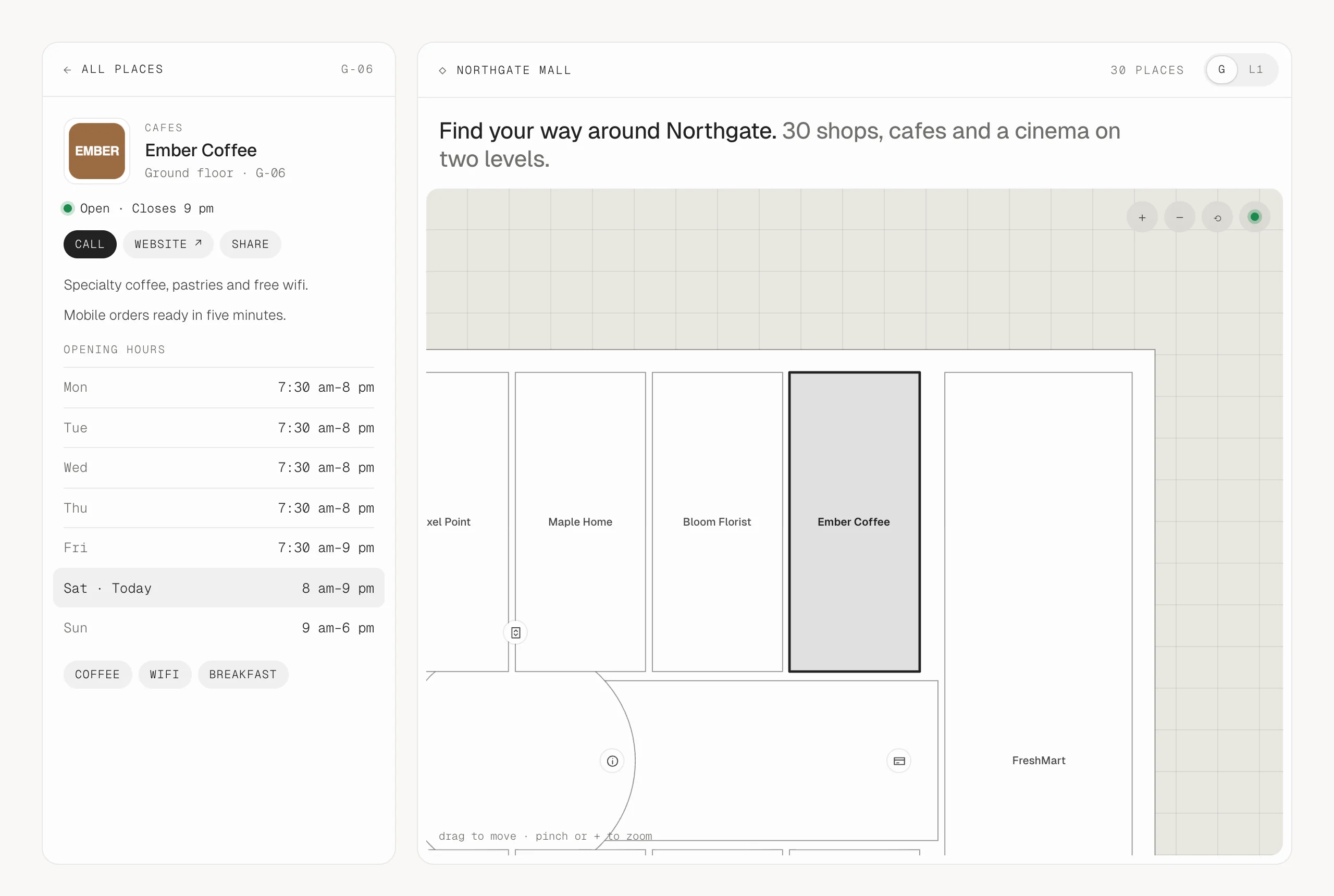
Bottom lineMatching names do the linking. You only fix the odd one by hand.
7. Add hours and place the map on a page
Fill in categories and opening hours, then add the Venue map block, the Elementor widget or the shortcode [spotthemes_venue_map id="123"] to a page. The shortcode takes theme, height and floor options. See it working in the live mall directory demo, which was built from two SVG floors exactly like this.
Bottom lineBlock, widget or shortcode. The map is live as soon as the page is.
Common mistakes
- Names on groups. The shape has no name, so nothing links. Rename the shape.
- Units with no fill. They show up as outlines that cannot be clicked. Give them a fill.
- Labels as outlines. Hundreds of letter shapes. Delete the label layer before export.
- Shop names instead of unit numbers. Fine on day one, wrong after the first move.
- All floors in one file. Export one SVG per floor.
TL;DR
- One filled, closed shape per unit, on its own layer.
- Name each shape by its unit number, on the shape itself.
- No text labels in the file. One SVG per floor.
- Upload, press "Link shapes to places by unit or name", add hours, place the block.
Our verdict
The work is in the file, not in WordPress. Ten minutes spent naming shapes by unit number saves hours of clicking later, and the same file keeps working when tenants change. If you want to try it on your own plan, open the builder demo and drop in your SVG. Venue Map costs from $149 a year. If something breaks, email support@spotthemes.com.
Comparing tools first? Read our WordPress floor plan and directory plugins roundup, or see how it looks for a campus map and an office building directory.