 SpotThemes
Venue settings
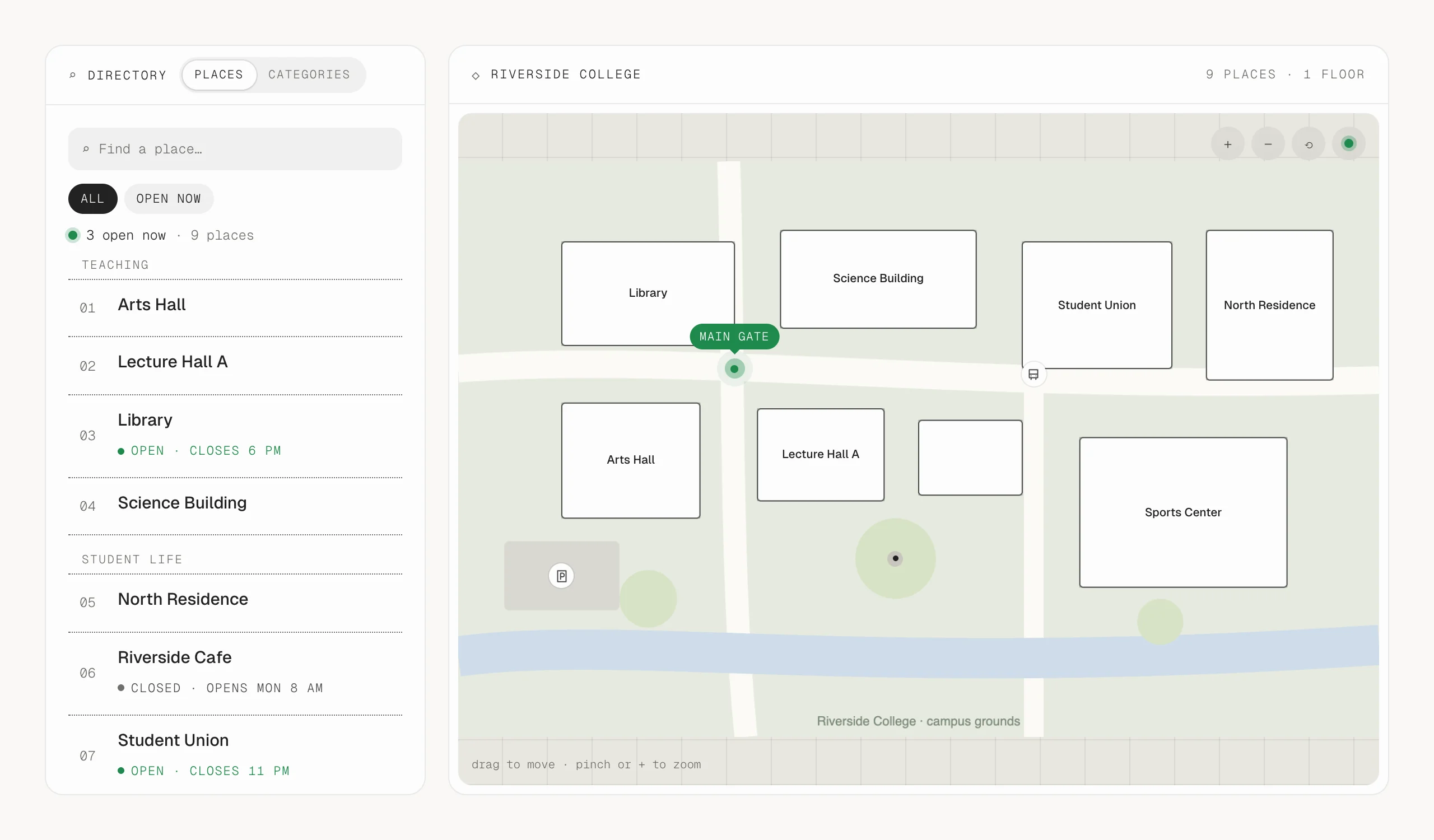
Open a venue and go to its Settings tab. Changes show in the Preview tab at once and go live when you press Update.
| Setting | Choices | Default |
|---|---|---|
| Style | Light, Dark, or Follow visitor setting (light or dark) | Light |
| Directory side | Left of the map or Right of the map | Left |
| Height on desktop (px) | 360 to 1200 | 620 |
| First floor shown | Any floor, or the first floor in the list | First in the list |
| Directory order | A-Z, or By category (grouped under category names) | A-Z |
| Most zoom | 2 to 12 times | 6 |
| Header label | Up to 50 characters, shown at the top of the map card | The venue title |
| Headline, dark part | Optional, up to 120 characters, for example "Find your way around." | Empty |
| Headline, gray part | Optional, up to 160 characters, for example "120 shops and restaurants on 3 levels." | Empty |
| Show names on the map when they fit | On or off | On |
| Show opening hours and "Open now" | On or off | On |
| Use the colours from uploaded SVG plans | On: the file's fills and strokes. Off: clean SpotThemes style | Off |
Under the settings the tab also shows the time zone "Open now" uses, which comes from Settings, General in WordPress.
Light, dark and auto
Light and dark are fixed. Auto (Follow visitor setting) follows the visitor's device: a phone in dark mode sees the dark map, the same page on a light laptop sees the light one. To match a dark site section, use the dark style on that page only with the block's Style control, the widget's Style control or theme="dark" in the shortcode.
Site-wide settings
Venue maps, Settings & license holds your licence key and two settings for every venue on the site.
- Font: Geist (built in, recommended) or Use my theme font.
- When deleting the plugin: tick "Also delete all venue maps and settings" to remove every venue when you delete the plugin. Left unticked, your venues stay in the database. The licence key is always removed on delete, since it belongs to that site.
Phones, keyboard and screen readers
These are built in and have no settings.
- Phones (screens up to 640 pixels wide): the map fills the screen and the directory becomes a bottom sheet, with a handle to pull the list up over the map or drop it back down.
- Keyboard: Tab reaches every place on the map and in the list. Enter or Space opens a place, plus and minus zoom the map, arrow keys move through the list, and Esc closes a place card or clears the search.
- Screen readers: search results and map changes are announced, and the map buttons have labels such as Zoom in and Show where I am.
- No JavaScript: the page still has a plain list of every place with its category, floor, unit, phone and website, plus the floor pictures.
- Reduced motion and Windows high contrast mode are respected. Printing leaves out the map buttons.
The Venue Map product page shows the phone layout, and the office building directory demo shows the same layout with a sample tenant list.
Related docs
- Place the map: block, shortcode or ElementorShow a venue with the Venue map block, the Elementor widget or [spotthemes_venue_map id]. All shortcode options: theme, height, floor.
- Add places, categories and opening hoursEvery field of a place in Venue Map, how categories and amenities work, and how to type hours with split shifts and times past midnight.
- TroubleshootingEvery error message Venue Map shows and what to do: SVG too large, shapes not clickable, floor plan not loading, theme CSS, caching.
- Licence, sites and stagingHow Venue Map licence keys count sites, why test and staging sites are free, how to move a site, and what happens when a plan ends.